Pro Ham Radio Mini Log — User Guide & Overview
1. What It Does
Pro Ham Radio Mini Log is a web-based amateur radio logging application built in PHP with a responsive interface designed for mobile devices, tablets, and desktop browsers. It logs QSOs locally and syncs with QRZ.com while keeping sensitive credentials and log files protected on the server.
Key capabilities include:
-
Station Profiles & Security: Supports up to 5 station profiles (each with its own callsign, QRZ username/password, QRZ logbook API key, and eQSL settings), protected by password authentication, session timeouts, CSRF protection, rate limiting, and encrypted credential storage (
sodiumoropenssl). -
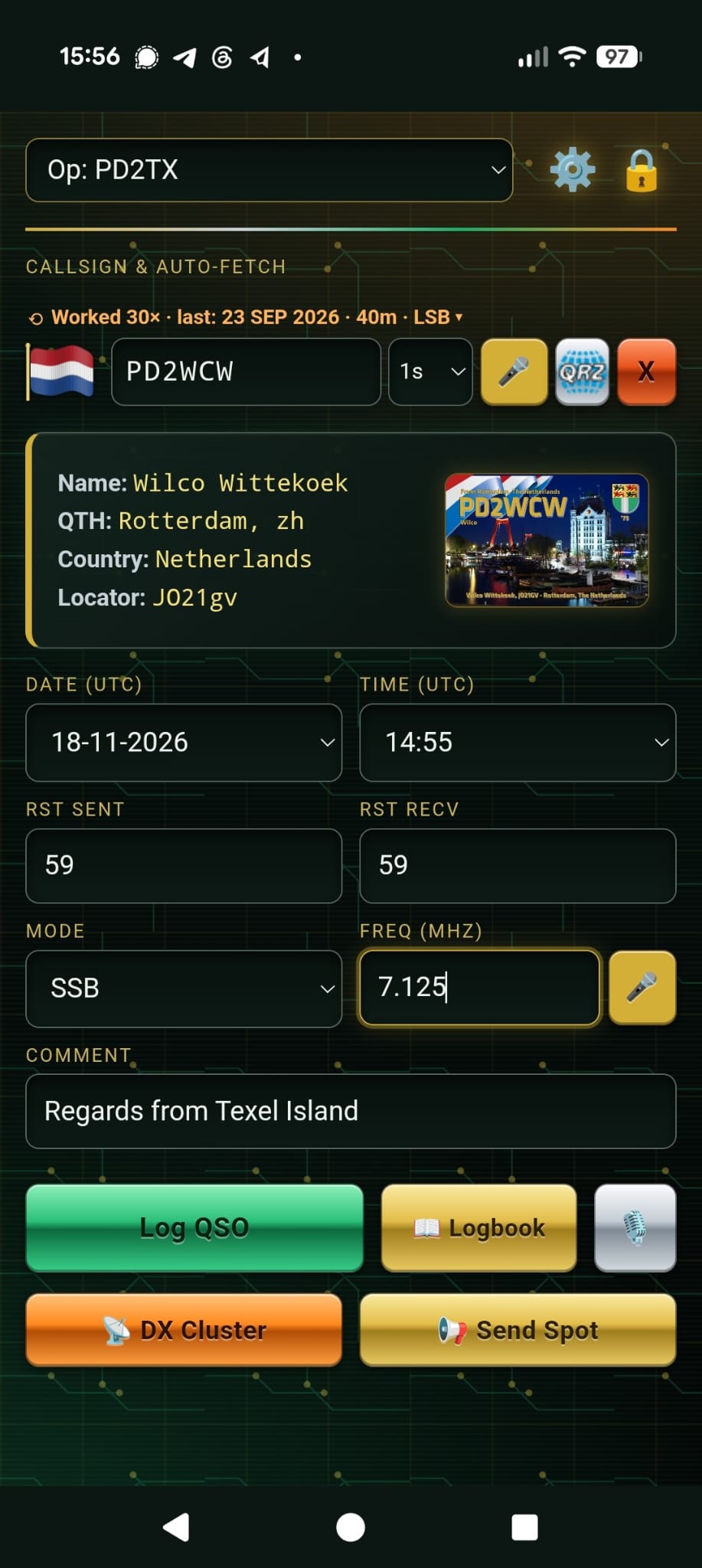
QRZ Lookup & Worked-Before Check: Looks up station details (name, QTH, country, grid locator, email, and station photo via a server-side proxy) on QRZ.com and checks whether you have worked the callsign (or base callsign) previously in your log.
-
Country Flags: Displays country flags next to callsigns using a bundled flag font (
HamLog Flags) so flags render consistently across platforms, including Windows browsers. -
QSO Logging & Editing: Logs date/time (UTC), RST/signal report (supporting standard RST as well as dB reports for FT8/FT4), mode (
SSB,FM,CW,FT8,FT4,DATA,DIGITALVOICE), frequency (normalized to MHz), and comments. QSOs can later be searched, edited, or deleted in the Logbook—optionally updating or removing them on QRZ.com as well. -
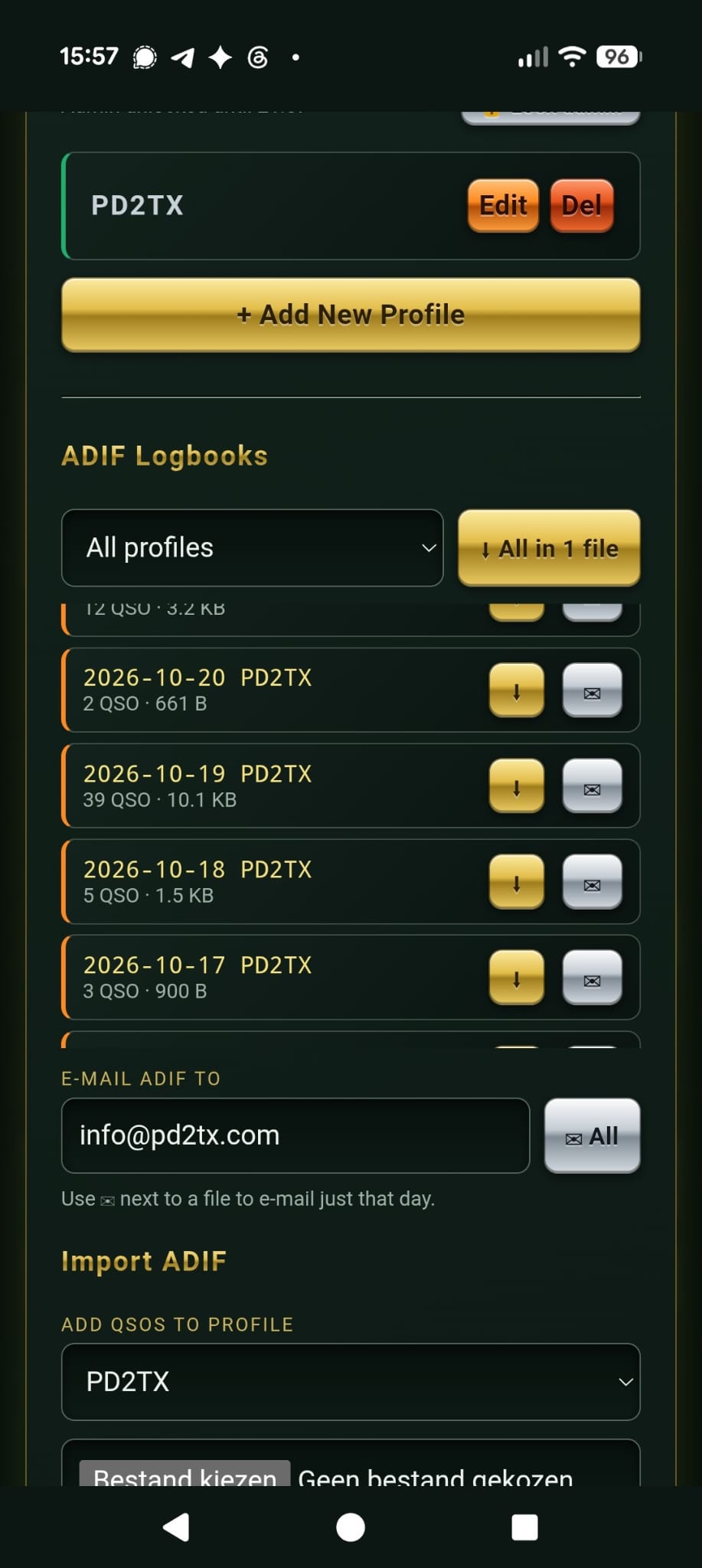
ADIF Export, Import & Backups: Automatically maintains daily
.adifiles per profile inadif_logs, supports downloading or emailing individual day files or combined exports, imports ADIF files with duplicate detection, and creates rotating backups before logbook clears. -
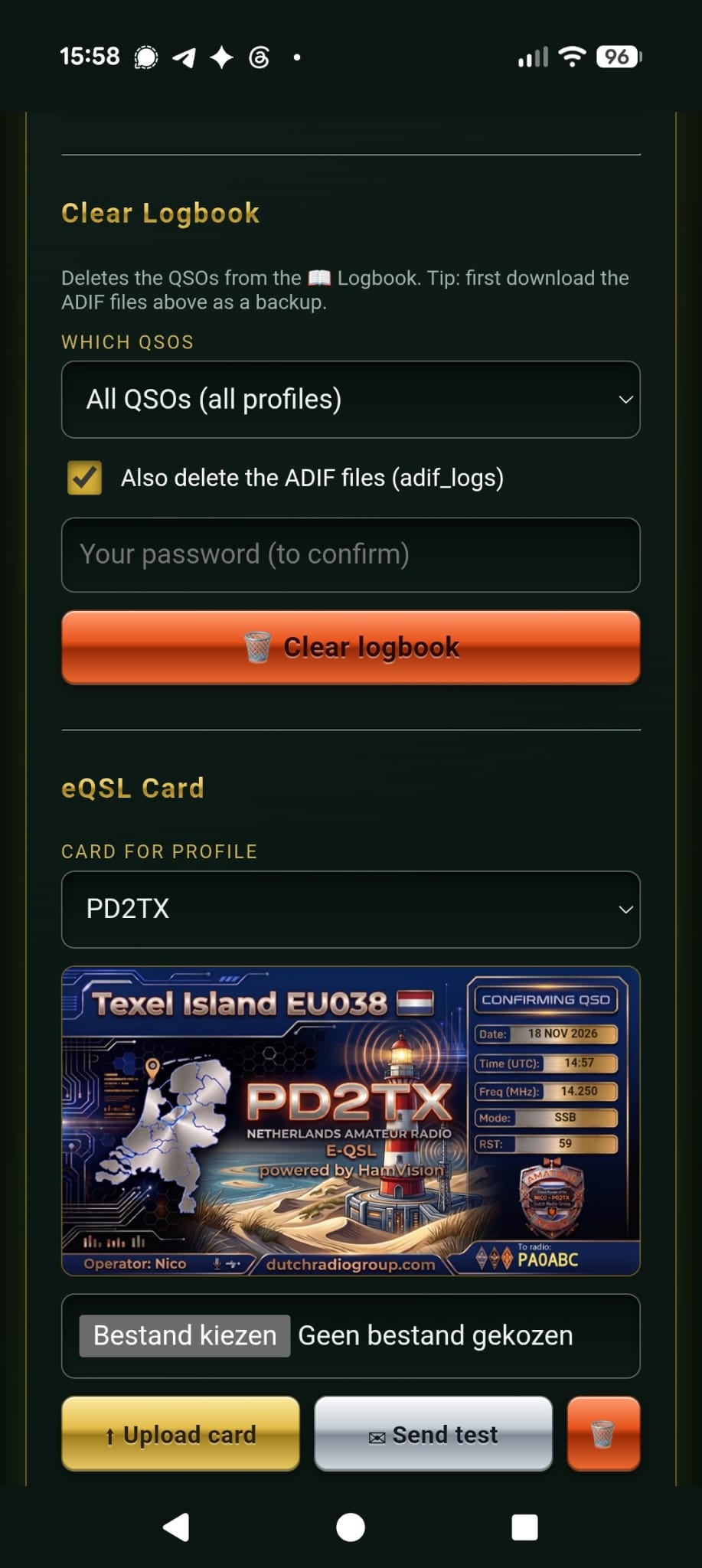
eQSL Cards: Allows uploading a custom card template (JPG/PNG) per profile, previewing field positions, sending test cards, and emailing eQSL cards automatically after logging or manually from the Logbook.
-
DX Cluster & Spotting: Displays recent DX spots (with band filtering and caching) and lets you transmit new DX spots via web gateways or telnet cluster nodes.
-
Installable Web App (PWA): Includes a web app manifest, service worker, and generated app icons so you can add it to a phone or tablet home screen.
2. How to Use It (Step by Step)
Initial Setup & Login
-
Open the app over HTTPS in your browser.
-
On first run, complete setup using the generated setup code and choose an admin/user password.
-
Log in with your password. If migrating from an older configuration, you will be prompted to set a new password.
Configuring Station Profiles & ADIF/eQSL Settings
-
Select your active station profile from the dropdown at the top.
-
Tap ⚙️ to open Admin Access, enter your password to unlock the Admin Dashboard (stays unlocked for 6 hours by default), and configure:
-
Profiles: Add or edit callsigns, QRZ credentials, QRZ API keys, and optional automatic eQSL sending.
-
ADIF Logbooks: Filter by profile, download single-day or combined
.adifiles, email ADIF files, or import existing ADIF files. -
eQSL Card: Upload a card image, view field positions, send a test card, or download the layout template.
-
Clear Logbook: Clear log entries (with password confirmation and automatic backup) when needed.
-
Logging a QSO
-
Choose the active Profile at the top.
-
Enter or speak the Callsign. You can use the Auto-Fetch timer (
Offor1s–5s), tap the QRZ lookup button, or tap X to clear the callsign. -
Review or adjust Date (UTC), Time (UTC), RST Sent, RST Recv, Mode, Freq (MHz), and Comment.
-
Tap Log QSO (or use the voice command—see below) to log the contact to QRZ and save it locally.
Reviewing, Editing, DX Cluster & Spotting
-
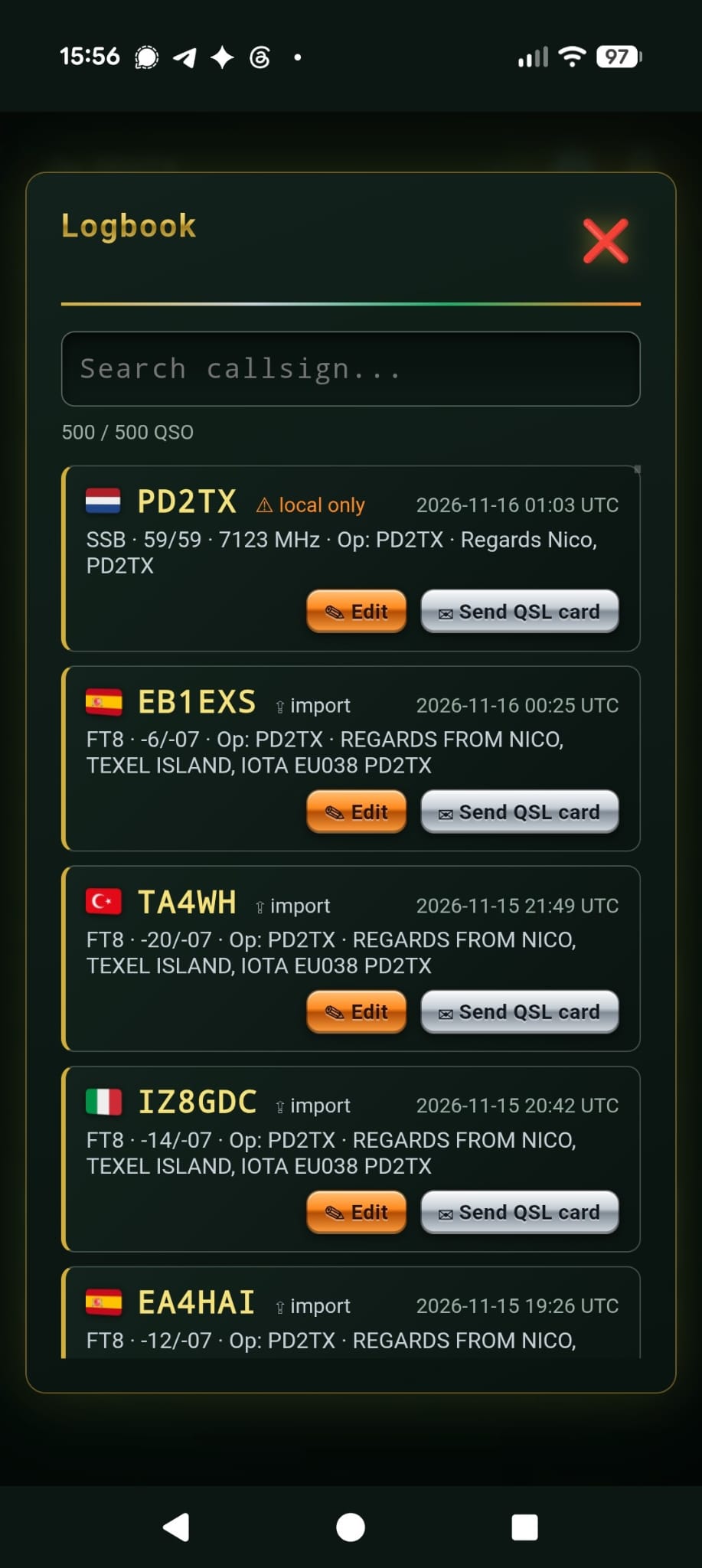
📖 Logbook: Search callsigns, view QSO history and QRZ/eQSL status, or tap a QSO to edit or delete it.
-
📡 DX Cluster: Browse live spots and filter by band.
-
📢 Send Spot: Spot a station using your active profile's callsign, spotted callsign, frequency (in kHz), and an optional comment (up to 30 characters), subject to the cooldown timer.
3. Using Voice Features
The interface includes dedicated voice controls alongside the callsign, frequency, and logging buttons:
-
Callsign Microphone (
🎤next to Callsign): Tap to dictate a callsign into the callsign field. -
Frequency Microphone (
🎤next to Freq): Tap to speak a frequency into the frequency field. -
Voice Command Button (
🎙️): Tap to start voice command listening and say "log contact" when ready to log the QSO.
Practical voice tips: Speech recognition relies on your browser and device microphone permissions (
microphone=(self)is enabled in the app's permissions policy over HTTPS). Speak clearly, spell out tricky callsigns phonetically or distinctly if needed, and verify the populated callsign and frequency before logging.
4. Using It on a Phone or Tablet
Adding to Your Home Screen
-
Android (Chrome): Open the menu and choose Install app or Add to Home screen.
-
iPhone / iPad (Safari): Tap Share and choose Add to Home Screen.
-
Once installed, it launches in standalone/full-screen mode with the station's app title and icon.
Tablet & Phone Layout Tips
-
Phones: Optimized for single-column mobile use with large touch targets and compact action rows.
-
Tablets: Touch tablets (
pointer: coarse) automatically scale and adjust layout proportions across portrait and landscape orientations so the form and action buttons remain easy to reach without awkward zooming. -
Active Connection Needed: The service worker does not cache live log data offline; it displays an offline notice if there is no connection so you always work with current log and cluster state.